HashiCorp Vault: Installation and Setup Guide
Introduction
-
This document explains the step-by-step process to
-
Install Vault in Docker
-
Configure Vault
-
Create policies
-
Generate tokens
-
Log in to Vault UI
-
Enable a KV secrets engine
-
-
Vault is used for secret management including API keys, passwords, certificates, and other sensitive data.
Prerequisites
-
Ubuntu 24.xx VM
-
Docker installed and running
-
Terminal access to VM
-
Browser access to VM’s public IP
-
Verify Docker
sudo docker --version -
Install Docker (If not already installed)
sudo apt update && sudo apt upgrade -y sudo apt install -y docker.io docker-compose sudo systemctl enable --now docker -
Check Docker
docker --version
Pull Vault Docker image
sudo docker pull hashicorp/vault:1.20.3Run Vault in Dev mode
sudo docker run -d --name vault --cap-add=IPC_LOCK -p 8200:8200 \
-e 'VAULT_DEV_ROOT_TOKEN_ID=root' hashicorp/vault:1.20.3 server -dev-
Check container
sudo docker ps -
Expected output
CONTAINER ID IMAGE STATUS PORTS NAMES 067068a77e7d
hashicorp/vault:1.20.3
Up 3m
0.0.0.0:8200→8200/tcp
vault
Set environment variables
export VAULT_ADDR='http://<VM-IP>:8200'
export VAULT_TOKEN='root'|
Replace <VM-IP> with your actual VM’s IP. |
-
Check status
vault status -
Expected output:
Initialized: true,Sealed: false,Storage Type: inmem.
Create a custom policy
-
Create
engine-admin.hcl:sudo nano engine-admin.hcl-
The above command creates a engine-admin.hcl file and opens it.
-
Put the below script into the file.
path "sys/mounts/*" { capabilities = ["create", "read", "update", "delete", "list"] } path "Neptune/*" { capabilities = ["create", "read", "update", "delete", "list"] } -
Replace
Neptunewith your secrets engine path. -
Save with
Ctrl+X→ PressY→Enter.
-
-
Apply the policy
vault policy write engine-admin engine-admin.hcl
Generate a Token
vault token create -policy="engine-admin" -ttl="24h" -orphan-
Example output
Key                  Value
---                  -----
token                hvs.CAESIIQxZovKqtWFQXjkCyOg2AUY9gpLzutmnbhAwNw3UaaMGh4KHGh2cy5yWjhXS013OEhEQWphbGxsUlM3WFViQm4
token_accessor       Kfmef4rU69nXqBjQwSeNyUv3
token_duration       24h
token_renewable      true
token_policies ["engine-admin"]-
Use
tokenvalue to log into Vault UI.
Login to Vault UI
-
Open browser
http://<VM-IP>:8200/ui -
Select Token as authentication method.
-
Enter the generated token.
-
Access the Vault interface.
Enable KV Secrets Engine
-
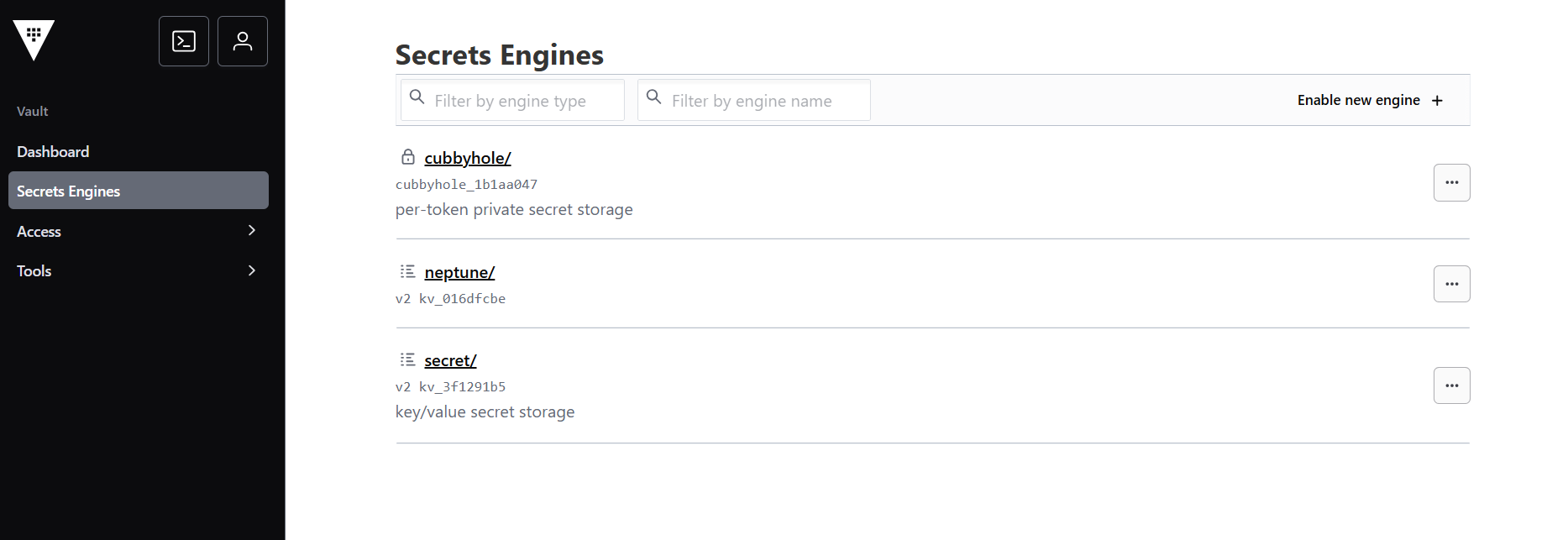
Navigate to Secrets → Enable new engine.
-
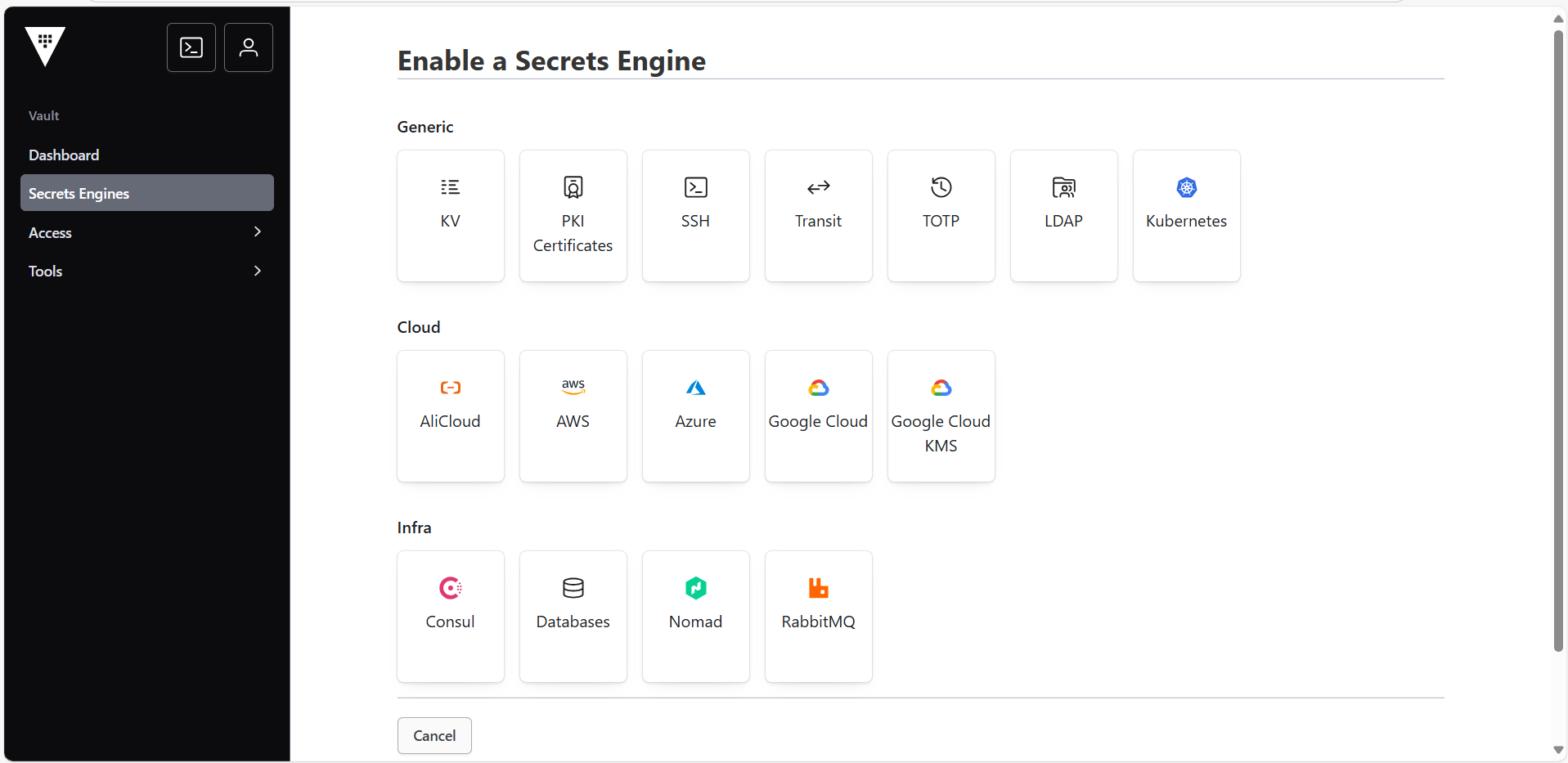
Choose KV (Key-Value).
-
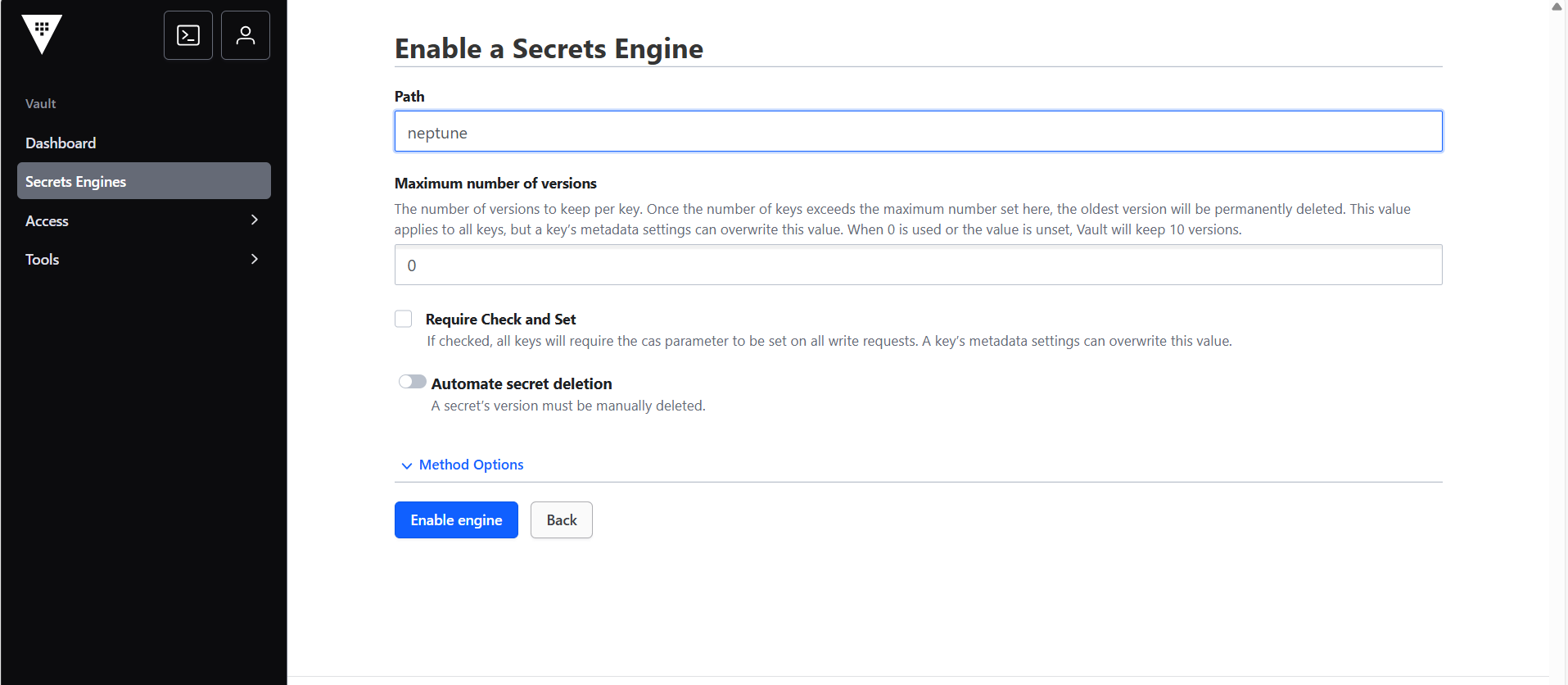
Path:
Neptune -
Maximum versions:
0(default 10 versions) -
Click Enable Engine.
Create Secrets
-
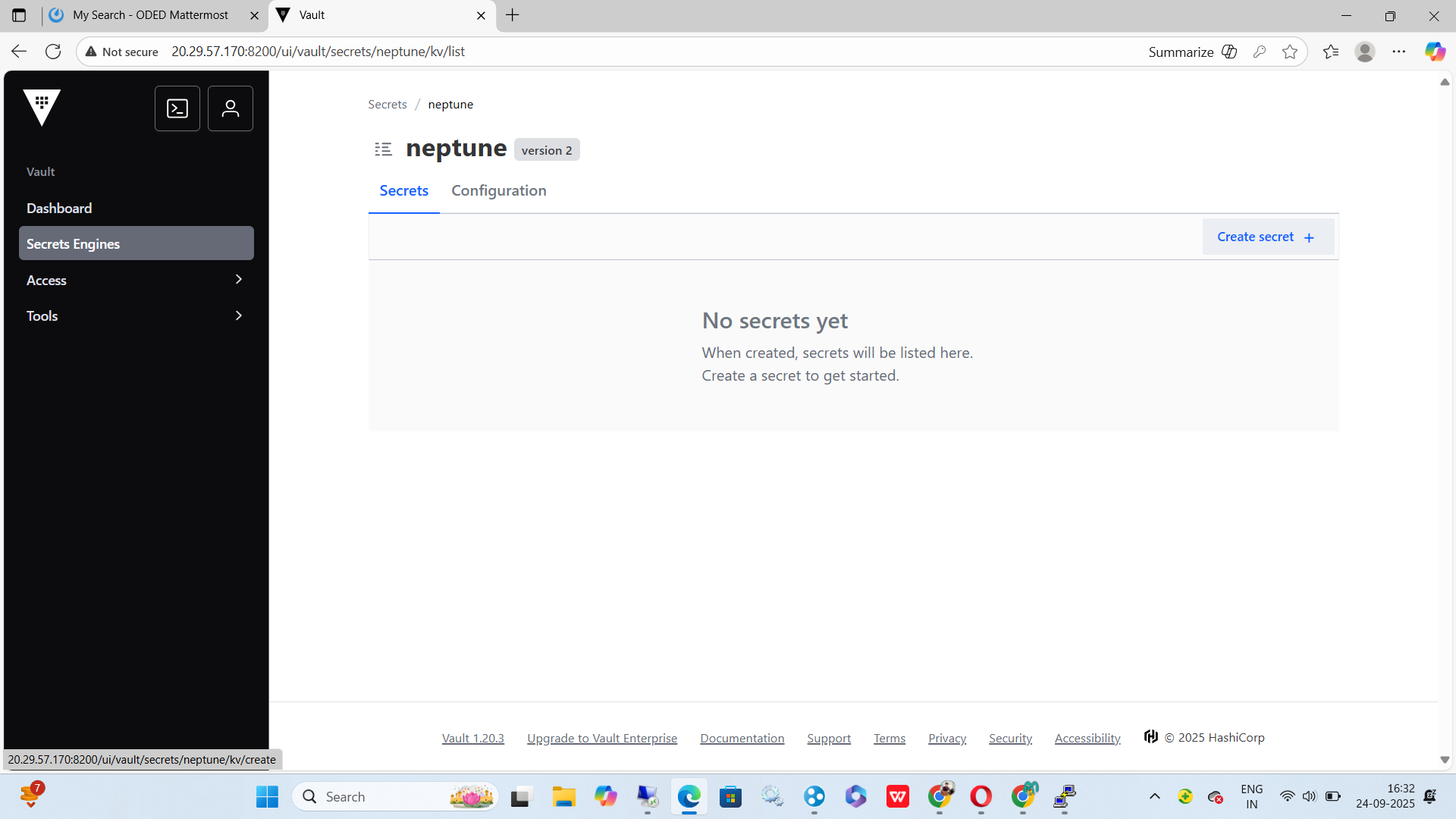
Go to Secrets → Neptune → Create secret.
-
Enter key-value
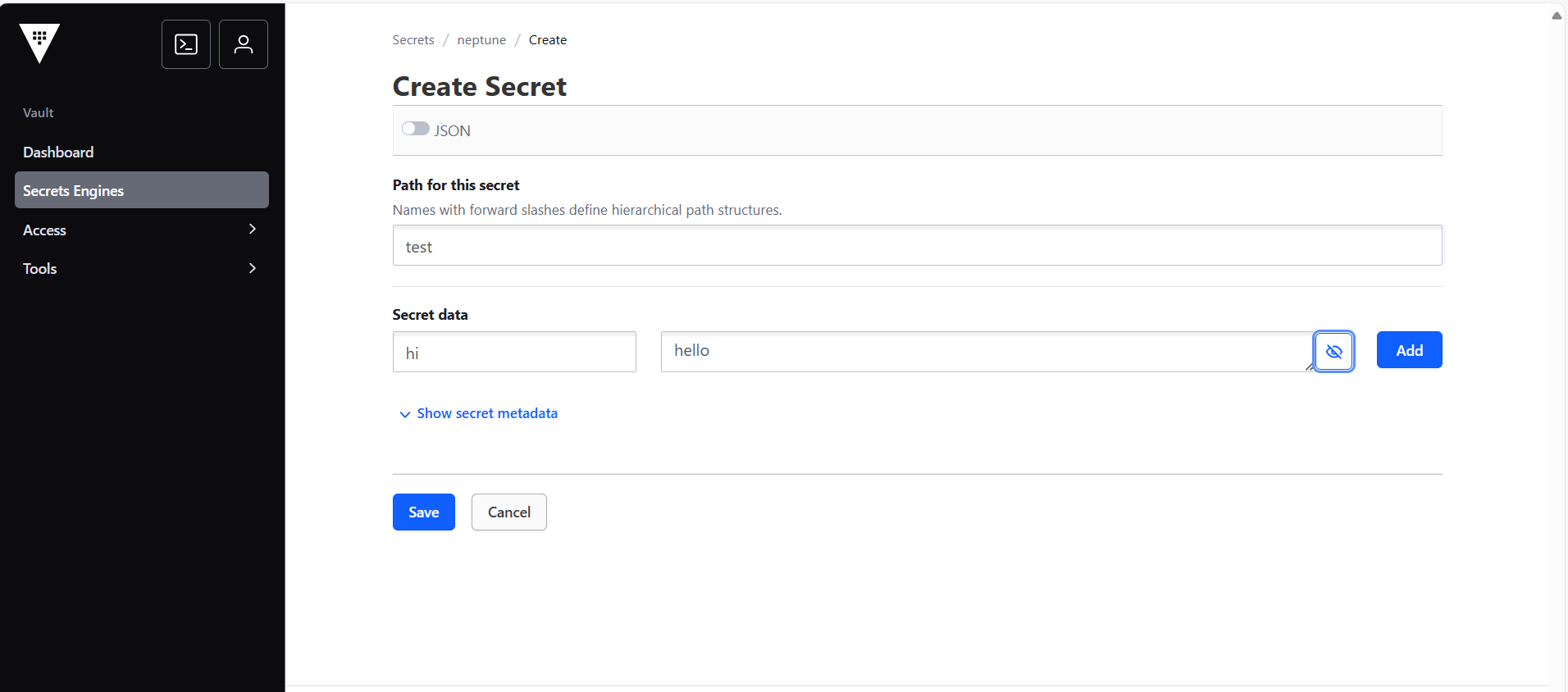
Key Value apiKey
1234567890
-
Click Save.